Install guide
Get Millo
Choose the computer that will run Millo for your company. A desktop that stays on is ideal. Everyone else uses Millo from a browser: on your office network, or from job sites with Millo Hub.
1. Download the right version
The first ten copies sold at the full price are numbered. What comes with a founding number, and why it stops at ten.
-
Mac with Apple silicon
Apple silicon (any M-series chip) · macOS 13 or newer
Buy Millo · US$450 -
Mac with Intel
macOS 13 or newer
Coming soon -
Windows
Windows 10 or 11, 64-bit
Buy Millo · US$450 -
Linux
x86-64 or ARM · Ubuntu 20.04, Debian 10 or newer
Coming soon
We've highlighted the version for this computer.
Buy it on the pricing card; your download page opens the moment you've paid.
Already bought Millo? Find your download with your email and order number.
2. Open it
Then your first hour with Millo, step by step.
Mac
- Open the downloaded Millo disk image. In the window that appears, drag Millo onto Applications.
- Open Millo from your Applications folder. Millo is signed with an Apple Developer ID and notarized by Apple, so your Mac opens it like any other app. The first time, it may ask you to confirm opening an app downloaded from the internet: choose Open.
- Millo starts on this Mac and opens in its own window. Closing the window leaves it running for the crew's phones.
- To have it start by itself whenever you log in: Settings, then Advanced, then Start Millo when you log in.
Windows
- On your download page, choose Download Millo for Windows, then open the installer from your browser's downloads. The installer is code-signed, so Windows can check who made it. If Windows says it protected your PC, choose More info, then Run anyway.
- The installer's first page says where Millo goes and where your records are kept, with two choices: letting crew phones on this network reach Millo, and starting Millo when you sign in to Windows. Choose Install.
- Millo is installed for you on this PC, in
%LOCALAPPDATA%\Programs\Millo, with a Millo folder in the Start menu. Open Millo there: it starts in the background and opens in your browser. Closing the browser doesn't stop it. - To have it start by itself whenever you sign in to Windows: Settings, then Advanced, then Start Millo when you log in.
- For crew phones, Settings, then Phones, shows Millo's address. On Windows, use the one that starts with the PC's number on the network, like
http://192.168.1.23:3100.
3. Set up your company
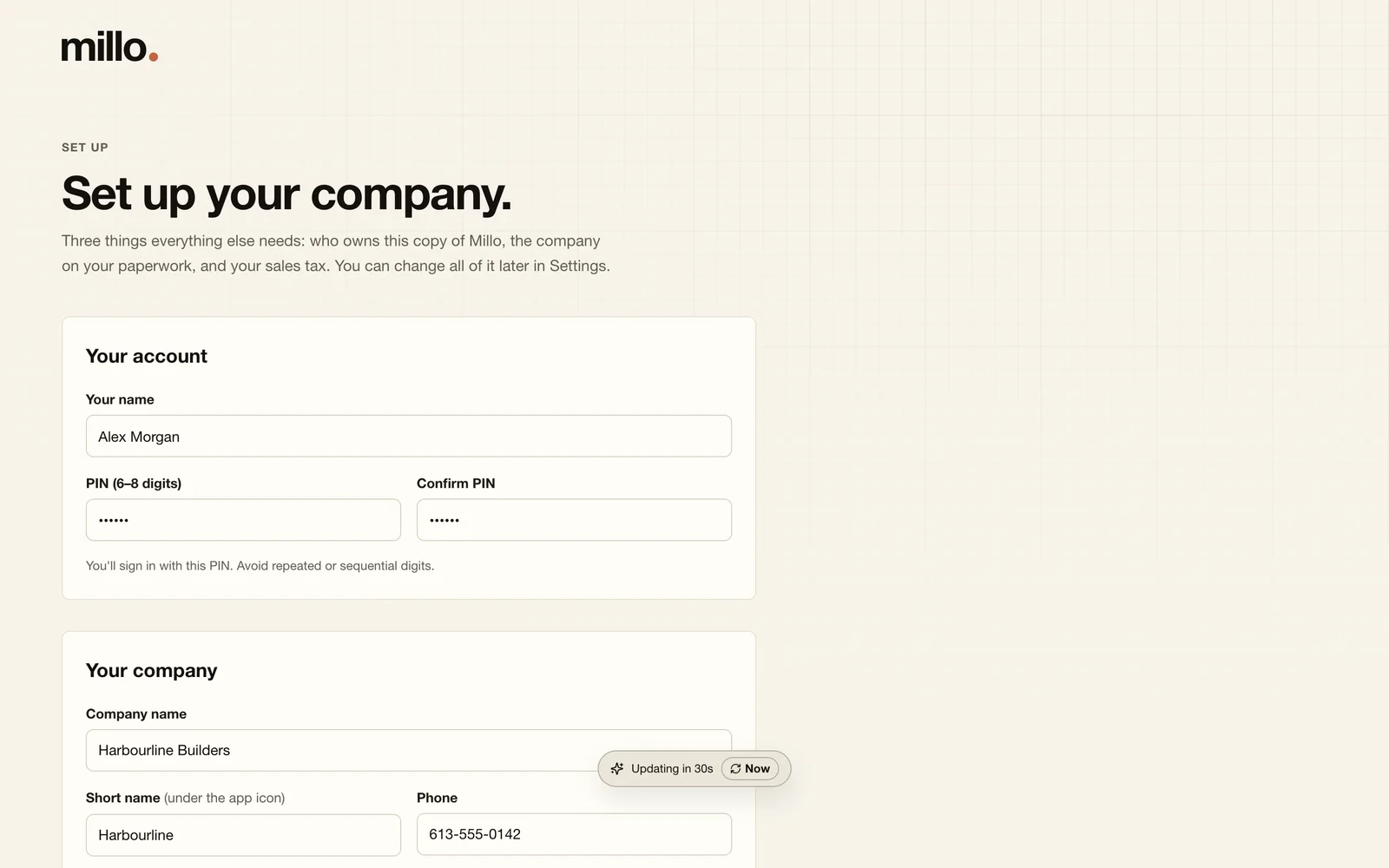
The first time Millo opens, it asks for your name and a PIN of six to eight digits for the owner sign-in; your company's name, the address and a phone number or email that go on its invoices; the app's colours; and your sales tax. Then two ticks: that the Ontario defaults suit the company, and that you accept the licence terms. About three minutes. Straight after, Millo offers to add your logo and your crew, and Today keeps a short list of what's left.
Crew phones
On the computer running Millo, open Settings, then Phones. A phone on your office Wi-Fi scans the code there with its camera, or opens the address shown, the computer's number on the network with :3100, for example http://192.168.1.20:3100. iPhones can also use the computer's name (on a Mac it ends in .local, for example http://office-mac.local:3100). Add it to the home screen and it opens like an app. On the Wi-Fi, phones get no location and can't keep working with no signal; Millo Hub's secure address does both.
For job sites, turn on Millo Hub: Settings, then Advanced, then Phones from job sites. It needs macOS 15 or newer on a Mac and your company's domain on a free Cloudflare account; Millo sets up the rest, and you pair each phone once under Settings, then Phones. Millo Link, which needs nothing set up, is coming soon.
Backups
Open Settings, then Backups, and choose a folder on a USB drive or a network drive. Millo copies your records there every night.
The assistant
Open Settings, then Advanced, then Assistant. Millo checks your computer and recommends a model. If Ollama isn't installed yet, it links to its free download.
Looking after Millo
Where your records live
Mac: ~/Library/Application Support/Millo
Windows: %APPDATA%\Millo
That folder holds the database, your files, logs and backups, unless you send backups somewhere else. The Millo program folder holds none of it.
Backups and restoring
Millo backs up every night to the folder in Settings, then Backups, and keeps the last 14. To restore, sign in as the owner, open Settings, then Backups, press Restore… beside the backup you want, tick that you understand work entered after it was made won't be in Millo, and press Restore this backup. Millo checks the backup, restarts and puts it in place, usually within a minute. Nothing is deleted: what was there moves into a folder named "before restore" and the date, inside the records folder. Everyone signs in again with the PIN they had then; anyone stopped from signing in since the backup still can't, a phone removed since stays removed, and a phone paired after the backup pairs again. Phone pairing, Millo Hub's settings and the master PIN stay as they are now. Restore is in Millo 0.1.8 and later; for an older Millo, or to restore onto another computer, the Backups page has every step under How to restore a backup.
Updates, PINs and removing
When a new desktop version is ready, the owner sees Update ready in Millo. Choose Download update, or Skip this version if you want to wait. Updates are for Millo owners, so the first time, Millo asks for your email and order number and then downloads updates on its own. The order number is on the invoice attached to the receipt Paddle emailed you. When the download finishes, the disk image opens by itself and Millo stops running, so the new version is what starts next; phones can't reach Millo until it's reopened. Drag Millo onto Applications to replace the old copy, then open it. If an older copy is somehow still running, Millo stops it and starts the new one. On a Windows PC the button is Install update instead: Millo downloads the new version with your order, checks it, installs it and starts again by itself on the same records. Millo upgrades its records on the first start, saving a copy first. If your Millo is 0.1.5 or older, its update window can't fetch this version: download 0.1.9 once from your download page with your email and order number, and after that updates are one click. Forgot the owner PIN? On the Mac that runs Millo, open Terminal and type /Applications/Millo.app/Contents/MacOS/Millo --reset-owner-pin. Deleting the app never deletes your records. On a Windows PC, uninstall Millo from Windows' Settings, then Apps; your records stay in %APPDATA%\Millo.