Quick start
Your first hour with Millo
Six steps, from the download to your crew clocking in on their phones. About an hour, start to finish. Print it and keep it beside the computer.

-
Open Millo
About 2 minutesOpen the download and drag Millo to your Applications folder, then open it. Millo starts on this Mac and opens in its own window.
The first time, your Mac may say it can't check Millo. Open System Settings, then Privacy & Security, scroll down, and press Open Anyway beside Millo. You only do this once.
To start Millo whenever you log in: Settings, then Advanced, then Start Millo when you log in.
-
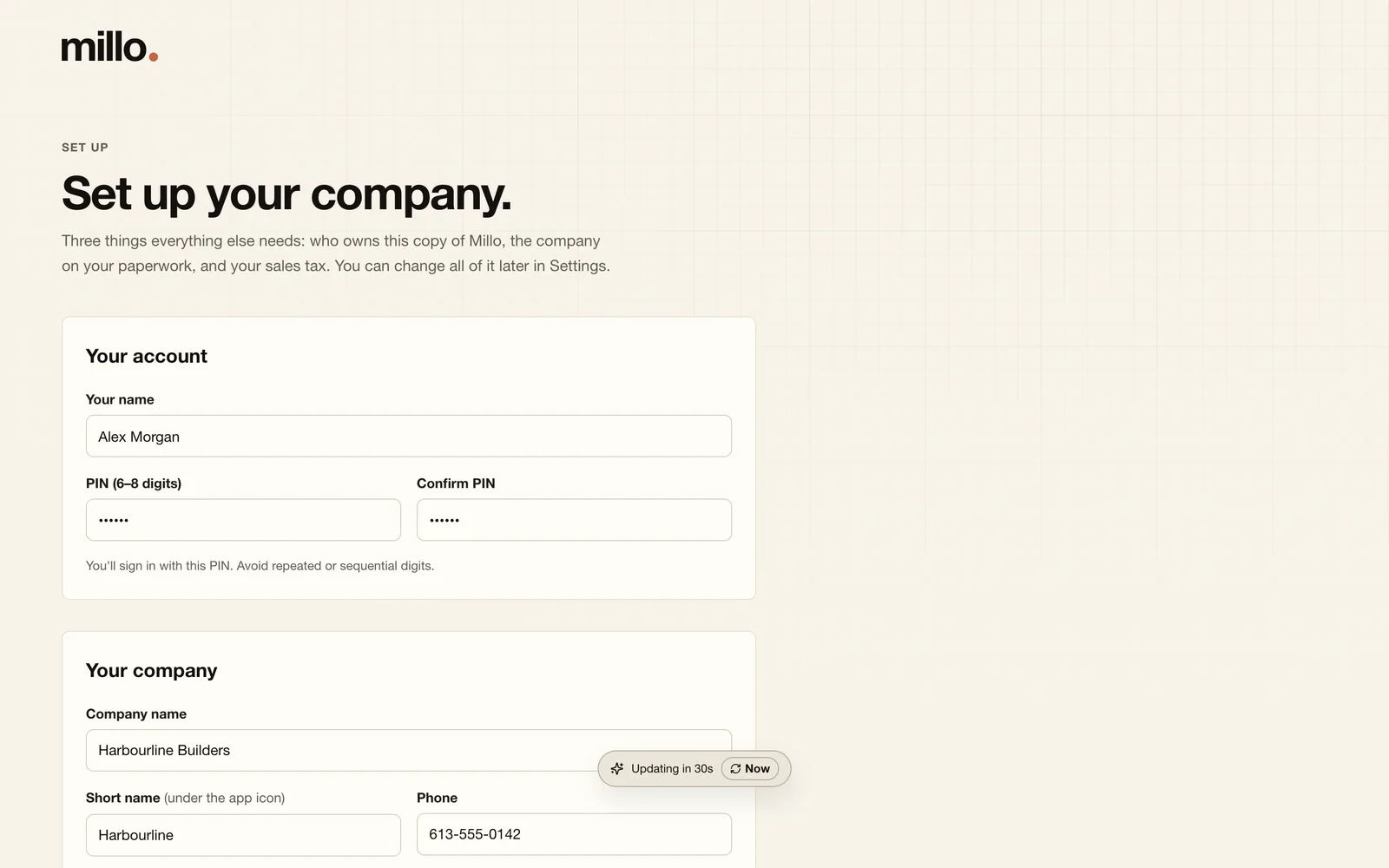
Set up your company
About 3 minutesYour name and a PIN of six to eight digits, your company's name as it goes on invoices, and your sales tax.
Then Today shows a short list of what's left to set up, with a link to each.
-
Add your crew
About 10 minutesOpen Crew, then Add someone: their name, role and pay. On their page, Give them a sign-in with a first-time PIN. They use it once, then choose their own that only they know.
Each person's page also lists what's left to get them started: an emergency contact, their signed agreement, tax forms.
-
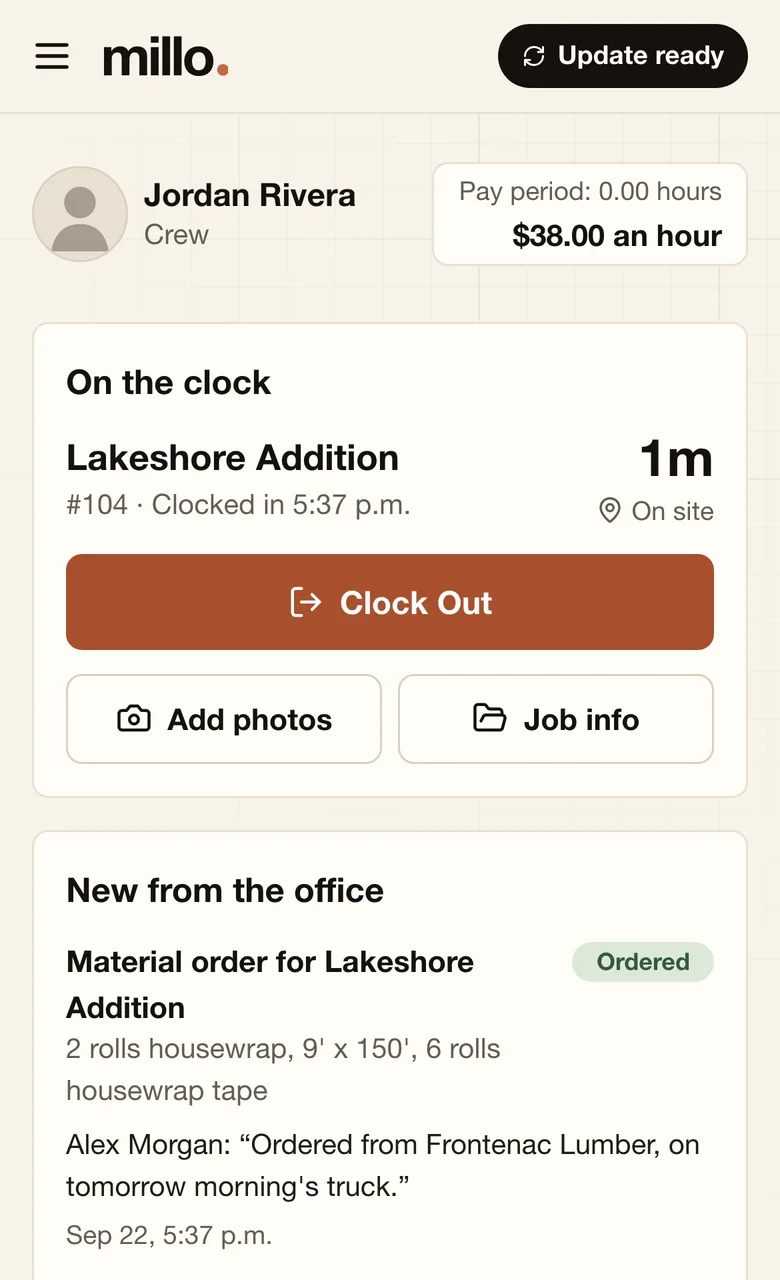
Put Millo on their phones
About 5 minutesOn the office Wi-Fi, open Settings, then Phones. It shows Millo's address and a code to scan. Each person scans it, signs in, and adds Millo to their home screen. On an iPhone: Share, then Add to Home Screen.
For job sites, Millo Hub on the same page gives Millo an address on your own domain.
-
Add your first job
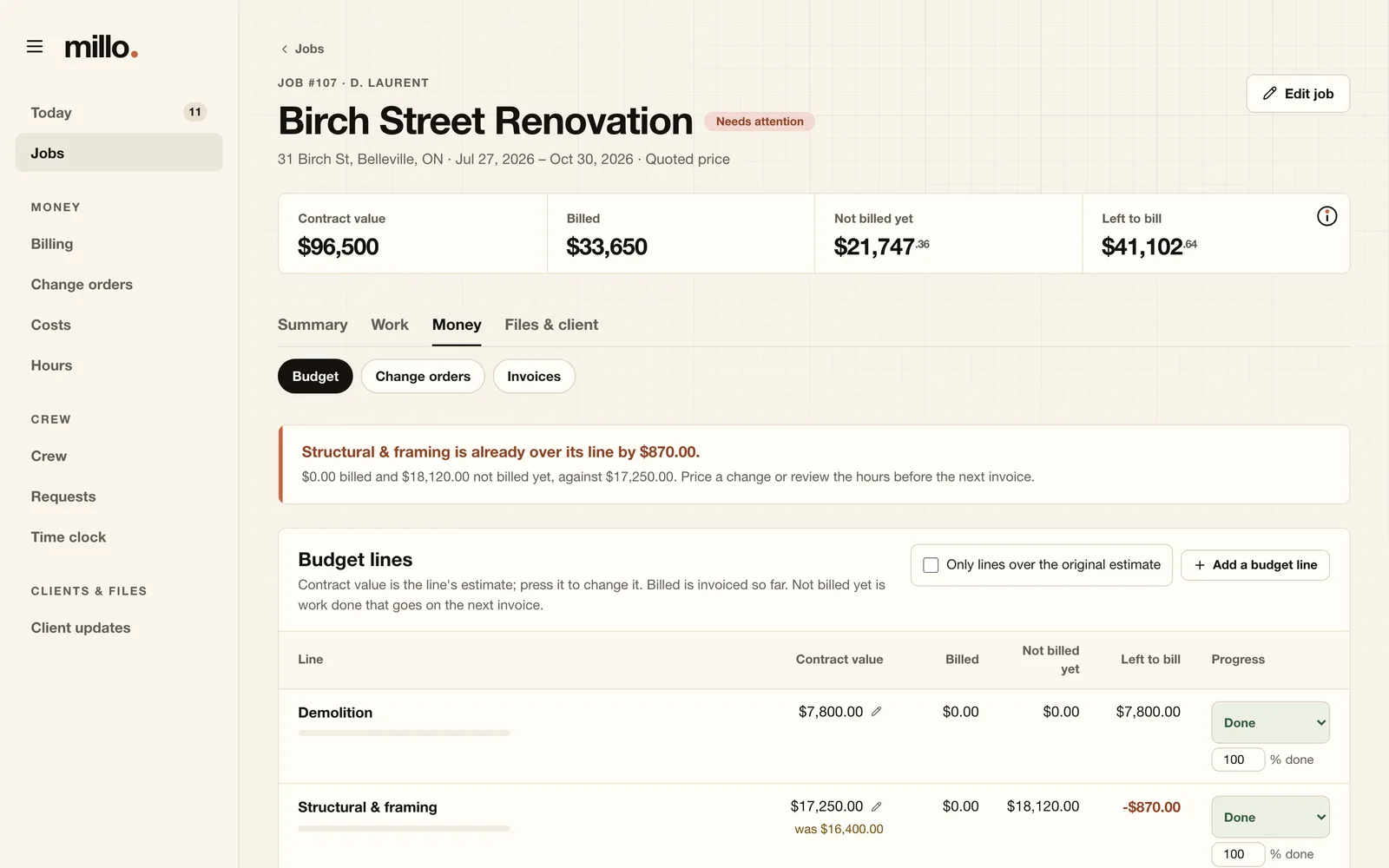
About 10 minutesOpen Jobs, then New job: the client, the site address and how it's billed. Then open Money, then Budget, and add a line for each part of your estimate.
From then on the job shows what it's worth, what's billed, what's done but not billed yet, and what's left to bill.
-
Every morning, open Today
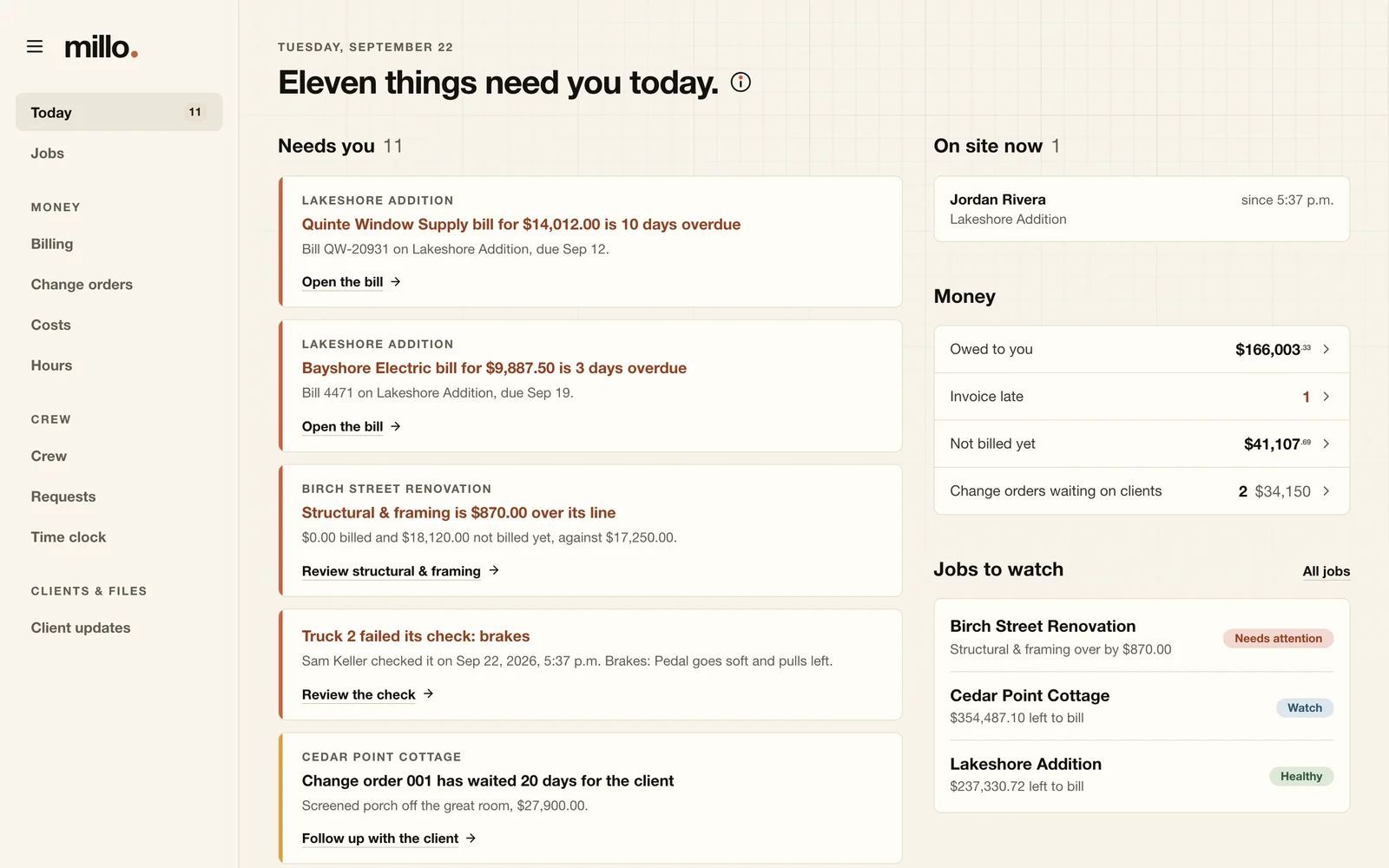
A minute a dayToday lists what's waiting on you: requests from the crew, time off, billing that's due, late invoices. Each one says why, how much, and what to do next.
Beside it: who's on site right now, the money in one line, and the jobs to watch.
Two more this week
Turn on backups
Settings, then Backups: pick a folder on another drive, and Millo backs everything up every night.
Bill your first job
Billing lists each job and the step it's on, from confirming the hours to getting paid.
Stuck on something?
Email support@millo.ca, or see Support for answers to common questions.